Open FightKaro in your phone's browser, rotate to landscape and tap to start. Use the on-screen direction control and PUNCH, KICK, GRAB and SUPER buttons. No separate installer is needed to open the browser version; device and browser compatibility can vary.
This guide describes the political satire fighting game at FightKaro, not a different parliamentary strategy game with a similar title. The mobile instructions and labels were checked on the public page on November 7, 2026. We have not tested every phone or a live multiplayer room.
Start in landscape
Open the official game address in a current mobile browser. Read the notice on the page and tap to start when prompted. Rotate the phone sideways so its long edge is horizontal. If the screen does not rotate, check the phone's orientation lock and then return to the browser. The game's own message requests landscape; it also mentions swiping up for a fuller view and offers a way to play with the toolbar.
Give the page time to load its assets before concluding that the game has stalled. A slow or unstable connection may delay the interface. If the screen is blank, first confirm that the browser is online and that the page address is correct. Refreshing can interrupt a match or room, so do that before starting a session or after accepting that progress in the current session may be lost.
Locate the touch controls
The page displays a directional control and separate PUNCH, KICK, GRAB and SUPER buttons. Use the directional control to move, jump or crouch. Holding the direction away from the opponent is the listed block input. Because back is relative to the other fighter, its direction changes when the fighters swap sides. Watch their positions instead of always holding the same side of the screen.
Tap PUNCH or KICK for a basic attack. GRAB provides the grab input. SUPER is associated with a full SHAKTI meter. The exact arrangement can differ with screen size or a future update; read the labels on your device. You can compare the touch inputs with desktop keys in the controls guide.
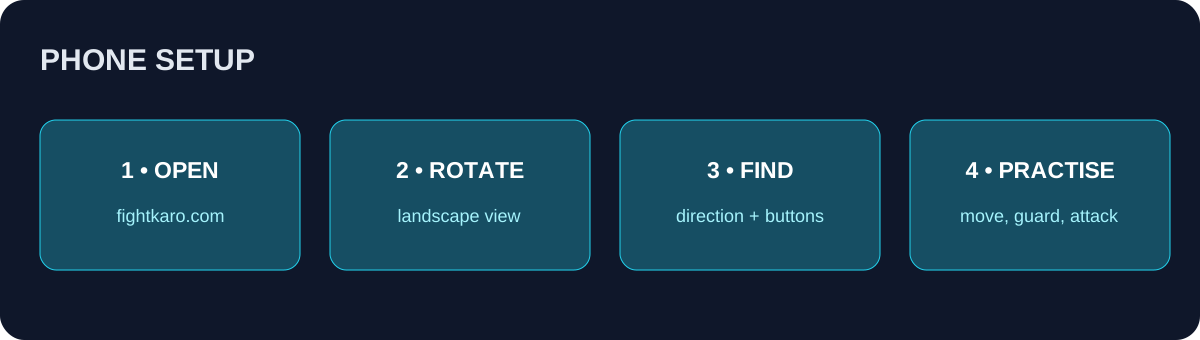
Original illustration of the landscape setup; it is not a screenshot of the game.
Make the screen easier to use
Hold the phone so that your thumbs can reach the controls without covering the fighters or the health bars. If a protective case makes edge taps difficult, adjust your grip instead of pressing harder. On a small display, take a moment to identify the directional area and the four attack buttons before starting a difficult match.
Browser toolbars can reduce the visible play area. The page offers fullscreen guidance and a toolbar option, but available browser controls differ. Try the option provided by your browser and confirm that you can still reach both the game controls and a way to leave fullscreen. Increasing screen brightness or using headphones may help you notice visual or audio cues, though neither changes the game rules.
If a finger seems to trigger the wrong action, pause and check where the touch target is drawn. Practise walking, stopping and turning without attacking. Then tap one attack button at a time. The goal is to establish reliable touch placement before attempting combinations while the opponent is moving.
A short touch practice session
Choose a CPU match and start at a comfortable difficulty. Spend the first round moving and holding back when the opponent approaches. Try a punch only after you can return your thumb to the directional control. In the next round, add a kick and then a grab at close range. Do not assume a grab has the same reach as a strike; observe the result.
The game legend lists short sequences such as punch-punch-kick. Tap those buttons in order and try again if the first attempt fails. If your thumb slips, slow down and pay attention to the separation between the buttons. Once SHAKTI is full, try SUPER from a position where the opponent is visibly in range. A full meter makes the input available; it does not promise that an attack will connect.
If you prefer a keyboard, use a desktop browser and the bindings listed on the game page. External keyboards and controllers may behave differently across devices, and this guide does not claim verified support for every accessory. The touch interface is the documented starting point for the mobile page.
Friend rooms and connection
The public interface has a Play with a Friend flow, a host button and a field for a friend's room code. One player can host and share the displayed code; the other enters it in the join field. Both should use the game page and a stable connection. We have not independently tested cross-device rooms, so confirm that the current interface supports your combination of devices.
If a join attempt fails, check the characters in the code and ask the host to confirm the room is still open. If needed, create a fresh room and share its new code. Switching apps, refreshing the page or losing connectivity may interrupt a session. Do not assume an old room code remains valid indefinitely.
Home-screen shortcuts and downloads
The game page mentions adding it to the home screen for a fullscreen-style launch. Browser menus and wording differ between operating systems. A home-screen icon can be a convenient shortcut to the web experience; it is not evidence of an APK, an app-store release or offline support. Test any offline behavior separately rather than promising it will work without a connection.
The checked game page did not provide an APK link. Avoid treating a file from a third-party page as an official release simply because it uses the game's name or art. Our download and APK guide explains how to evaluate a source and return to browser play.
When something does not work
Check orientation lock, browser focus, network access and any browser overlay covering the page. If touch input feels delayed, close unnecessary background apps and compare the experience after the page finishes loading; we cannot promise that every device will run identically. If the toolbar covers a button, try the page's own display option or rotate back and forth after checking orientation settings.
For selection, stages and first-match steps, see how to play. For the current names on the selection screen, see characters. Keep the game page's current instructions handy because a browser game can change after this guide was checked.